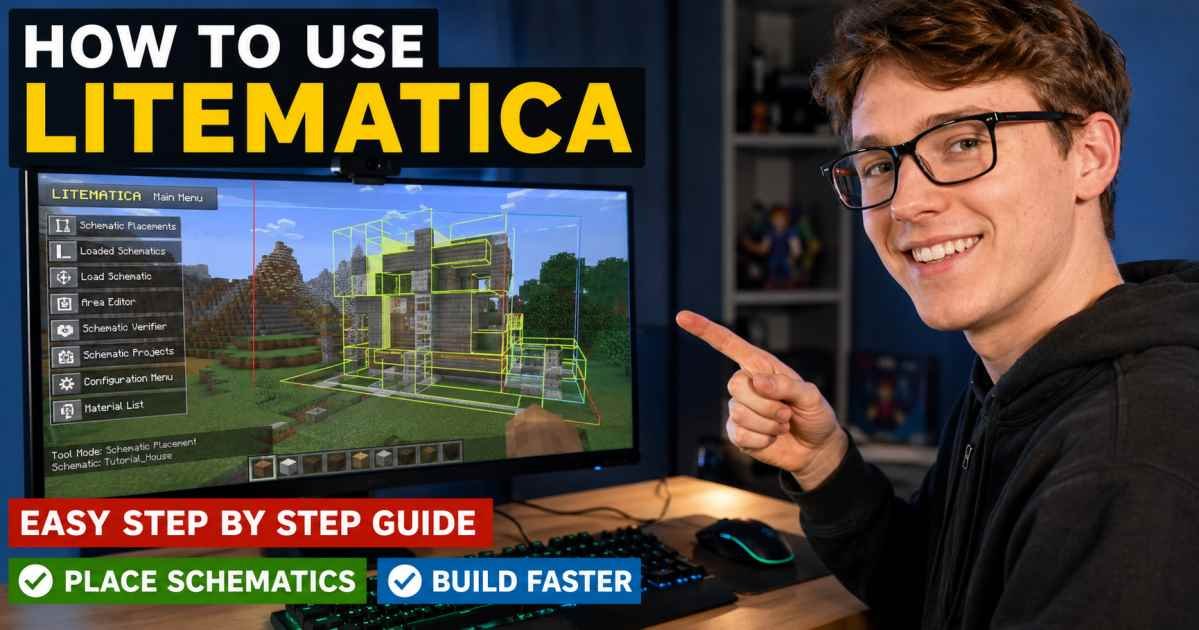
How to Use Litematica Easy Step By Step Guide
Litematica is a building helper mod for Minecraft that helps players copy, load, and place builds as schematics. It is popular because it makes large projects easier, faster, and more accurate.
In this guide, I explain how to use Litematica in simple language, with the main steps, common uses, material list tips, and easy fixes.
What Litematica Is and Why Players Use It
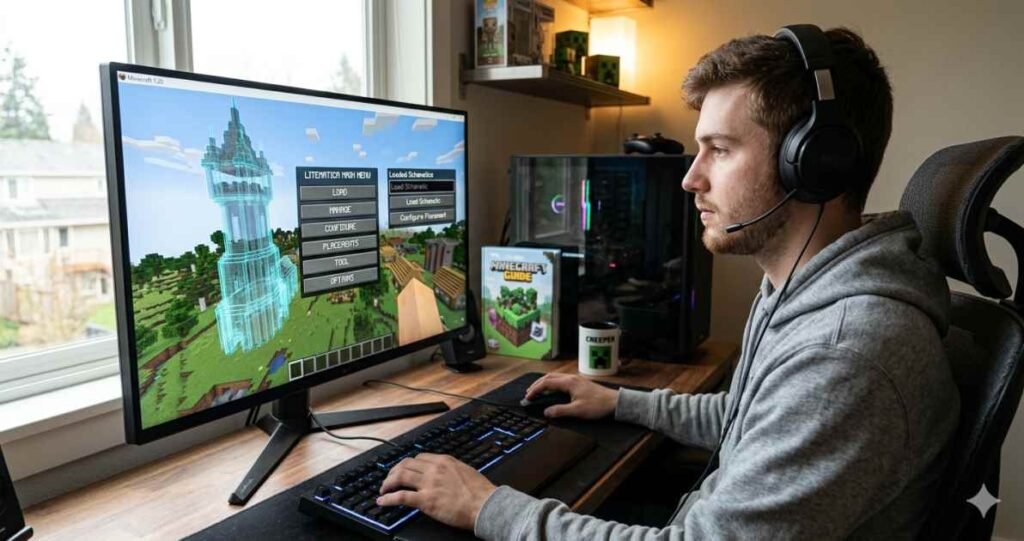
Building massive structures or complex redstone machines in Minecraft often requires extreme precision. I find that trying to copy a build from a video or a second screen leads to constant mistakes. This is exactly why the how to use litematica mod toolkit is essential for serious players.
Litematica is a modern client-side schematic mod developed primarily for light mod loaders like Fabric and Quilt. It allows me to display a 3D hologram or ghost-block version of any pre-saved structure directly in a Minecraft world. This hologram serves as a perfect visual template, showing exactly where to place every single block.
Beyond serving as a visual reference, players rely heavily on this mod for material planning and error checking. It tracks every block within a target zone, lists the exact resources required, and highlights incorrectly placed blocks. Because it runs purely on the client side, it can be used on multiplayer servers without requiring the mod to be installed on the server itself, provided the server’s anti-cheat rules allow it.
What You Need Before Using Litematica
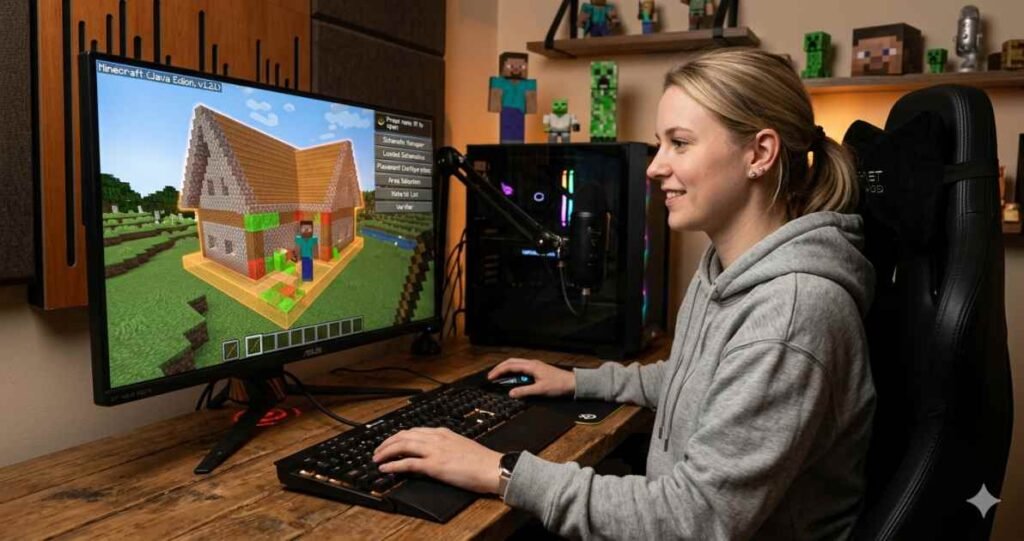
Getting the mod running smoothly requires a few prerequisites. Litematica cannot function entirely on its own because it relies on a specific library mod to handle its custom menus and advanced keybinding systems.
Here is what I ensure is installed before launching the game:
- A Compatible Mod Loader: Fabric or Quilt installed on the Minecraft launcher.
- The MaLiLib Library Mod: This is the core framework required by all of Masady’s client-side mods. The version must match the current game version.
- The Litematica Mod File: The correct file downloaded from a verified source like Modrinth or CurseForge.
- A Standard Minecraft Stick: This item acts as the primary tool for selecting areas, moving holograms, and cycling through modes.
I place both the MaLiLib and Litematica files directly into the standard mods directory inside the .minecraft installation folder. Once those are in place, the tool is fully ready for in-game use.
How to Open the Litematica Menu
Litematica manages its controls independently from the standard Minecraft options menu, which can sometimes confuse new users. It utilizes a custom multi-key keybind system instead of the vanilla system.
- Press the M key on a standard QWERTY keyboard to launch the main Litematica menu interface.
- Press the comma key to open the main menu if using an AZERTY keyboard layout.
- Access the configuration settings directly by pressing the M and C key combination.
- Locate the hotkeys panel inside the configuration menu to view or change any default key assignments.
When the main interface opens, it presents access to the area selections, loaded schematics, placement configurations, and material lists. If I ever need to temporarily hide all active holograms from view during gameplay, pressing M and R toggles the entire global rendering system on or off instantly.
How to Load a Schematic File
To build a structure designed by someone else, a matching schematic file must be acquired and placed into the correct local directory. These files carry the custom litematic extension.
| Step Number | Action Required | Technical Details |
| Step 1 | Download a template | Obtain a schematic file from a community sharing site. |
| Step 2 | Open game files | Open the Windows dialogue box by typing Windows + R, then type %appdata%. Minecraft, and press enter. |
| Step 3 | Transfer the file | Locate or create a folder named schematics inside the root directory and drop the downloaded file there. |
| Step 4 | Open in-game tool | Press M inside the target world and select Load Schematics. |
| Step 5 | Activate hologram | Select the desired file from the list and click the Load Schematic button. |
Once loaded, the 3D hologram will materialize near the current position. If the build does not appear, I double-check that the file was placed in the correct directory and that schematic rendering has not been disabled via the M and G toggle.
How to Create a Schematic Placement
Loading a schematic simply brings the 3D data into the world memory, but to actually position it for construction, a placement must be generated. A schematic placement is an active instance of the hologram that can be manipulated without altering the original template file.
- Equipping a standard Minecraft stick activates the lower-left overlay.
- Hold the Ctrl key and scroll the mouse wheel to cycle through the tool modes until reaching Mode 2: Schematic Placement.
- Point toward the target foundation area and click on a physical block to anchor the primary corner of the hologram.
- Open the dedicated placement configuration panel by pressing the Numpad Minus key, or navigate to M, then Schematic Placements, then Configure.
This step locks the template into the current world environment. Multiple separate placements of the exact same build can exist simultaneously, allowing me to duplicate a design across an area by creating independent anchors for each instance.
How to Move and Rotate a Schematic
Holograms rarely align perfectly with the surrounding terrain upon initial loading. Adjusting the orientation requires precise control tools to ensure the structure fits the land’s layout.
Step 1: Select the Target Placement
Equip the stick, enter Schematic Placement mode, and look directly at the hologram. Middle-click to ensure this specific instance is highlighted with a white border in the system backend.
Step 2: Nudge the Blueprint Incrementally
Face the exact compass direction where the hologram needs to shift. Hold the Alt key and scroll the mouse wheel up or down to nudge the entire structure one block at a time along that visual path.
Step 3: Open Orientation Settings
Press the M and P hotkey combination to open the active placements list directly, then click the Configure option next to the selected build.
Step 4: Apply Rotation and Mirroring
Click the Rotation button repeatedly to spin the hologram clockwise in 90-degree increments. Use the Mirror buttons if the floor plan needs to be flipped along a specific horizontal coordinate axis.
Using these manual nudging controls ensures that complex block arrangements align seamlessly with existing foundations before any physical placement begins.
How to Use the Material List
Gathering resources for large survival projects can be incredibly taxing without proper organization. Litematica solves this by scanning the loaded blueprint data and providing live inventory tracking updates.
I view the complete manifest by pressing M and L while looking at an active placement. The resulting material list menu displays a complete ledger broken down into several data points:
- Total Items: The complete volume of each block type required to finish the structure from start to finish.
- Missing Items: The precise count of blocks that are still needed to complete the build, taking into account what has already been placed in the world.
- Available Items: The count of matching items currently residing inside the player’s inventory.
An integrated Material List HUD can also be pinned directly onto the main gameplay screen. This overlay keeps the missing block counts visible at a glance while harvesting resources or emptying storage chests, eliminating the need to continually open full-screen menus.
How to Save Your Own Build as a Schematic
Capturing a custom build preserves it, backs it up, or shares it with other players across different game servers. This process requires creating a defined 3D boundary selection around the structure.
- Hold down the stick, then use Ctrl and Scroll to switch to Mode 1: Area Selection.
- Press M, select Area Selection, click New Selection, type a descriptive name, and confirm.
- Left-click a block on one outer corner of the custom building to mark the first boundary box marker.
- Right-click a block at the opposite diagonal corner to generate a visible red-and-blue box enclosing the structure.
- Open the Area Editor via M or by pressing Numpad Asterisk, verify that no chunks are marked as missing, and click Save Schematic.
If the structure is exceptionally large, I must walk around its perimeter to ensure all background chunks load into memory. If the interface warns about missing chunks, the save file cannot be compiled correctly until those sections are loaded visually by the client renderer.
How to Use the Schematic Verifier
When assembling highly technical redstone systems or massive block structures, a single misplaced item can render the entire system or structure inoperable. The verifier acts as an automated quality control inspector.
I run a manual scan by pressing the M and V keys together to open the verifier interface, then clicking the Analyze button. The system compares the current state of the world blocks against the exact specifications of the loaded blueprint.
The verifier categorizes discrepancies into three distinct statuses:
- Missing: Areas where a block should exist according to the blueprint, but only air is present.
- Mismatched: Instances where a block has been placed in the correct coordinate, but the block type or orientation is wrong.
- Extra: Blocks that exist in the physical world but are not present anywhere within the blueprint data.
Clicking on any specific error row within the verifier panel highlights that exact location in the world with a bright neon overlay. This lets me quickly swap out bad blocks or clear away obstructions without guessing.
Common Problems and Easy Fixes
Modding environments often encounter display or control conflicts. Most issues stem from overlapping keybinds or engine rendering limitations.
- The Menus Will Not Open: This typically means another mod is fighting over the M key. I open the standard game controls, unbind any vanilla functions attached to M, or use the Fabric Mod Menu interface to access the configuration panel and change the primary key.
- The Hologram Is Completely Invisible: Check whether global rendering was accidentally toggled off. Pressing M and R restores overall visibility, while M and G specifically toggle ghost blocks.
- Glitchy Graphics and Missing Shapes: Litematica rendering conflicts heavily with standard graphical shaders and performance tools like Optifine. If weird triangles appear across the landscape, turn off internal shaders, disable Render Regions and Fast Render in the video settings, or transition to utilizing Sodium and Iris for performance optimization instead.
Frequently Asked Questions About Litematica
Can this mod be used on multiplayer survival servers?
Yes, it runs entirely on the client side, so the server does not need the mod installed. However, the automated Easy Place feature simulates rapid placements that can trigger server-side anti-cheat blocks or bans, so I always check server regulations beforehand.
How do I view just a single horizontal layer at a time?
Press M and navigate to the Render Layers tab. Change the operational mode from All to Single Layer, then use the Page Up or Page Down keys to cycle through the build one vertical block height level at a time.
Is automatic printing included?
The base version of this tool does not feature an auto-builder or printer system. It is designed solely as a guide for manual placement. Players looking for automated building capabilities must install third-party extension mods specifically designed to handle printing.